User Guide
Deployment files (start.sh) and instructions (README.md) are available from the GitHub repository and the download directory. Run the commands below from the loacl directory containing start.sh.
1. Requirements
| Item | Requirement | Check |
|---|---|---|
| Operating system | CentOS 7.9, Ubuntu 20.04 or newer, with bash. | bash --version |
| Docker | Docker 20.10 or newer with the daemon running. | docker --versiondocker info |
| Compose | Compose v2 recommended; a working legacy docker-compose is also accepted. | docker compose version |
| Disk and RAM | About 25 GB free disk; 8 GB RAM minimum, 16 GB recommended. | df -hfree -g |
| Network | Required for online installation and central features such as compound completion, reference synchronization, registration and token queries. | Existing local data can be searched and analysed without continuous Internet access. |
Use sudo or add your user to the docker group and log in again. Python, MongoDB and R do not need to be installed on the host.
2. Install and start
Online installation
Only start.sh is required. It downloads missing Compose, image and checksum files, verifies and imports the images, and starts the services.
bash start.shOffline installation
Copy at least these four files into one directory. Keeping docker-compose.yml and SHA256SUMS.txt as well is recommended.
metabospark.tar.gz
mongodb5_client.tar.gz
omics.tar.gz
start.sh

bash start.sh --local
--local prevents all download attempts and reports any missing image by name. A plain bash start.sh also uses local files directly when all three images are present.
3. Open the client and check its status
On the deployment host, open http://127.0.0.1:8090. From another computer on the same network, use http://<server-ip>:8090. If you changed the port, use the URL printed by the installer.
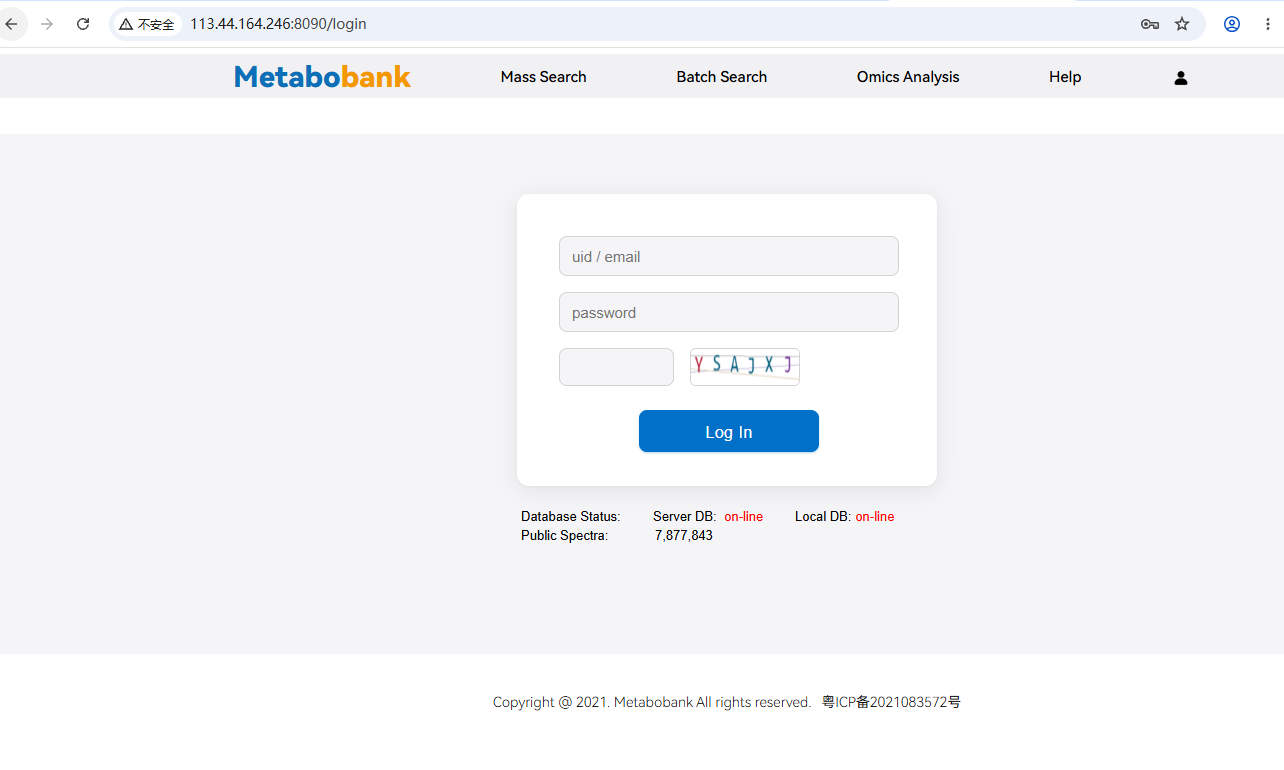
Figure 1. Example login page showing Server DB, Local DB and Public Spectra.
- Local DB: on-line means that local MongoDB is reachable and local functions can operate.
- Server DB: on-line means that the central platform is reachable. If it is off-line, existing local data can still be analysed, but central features are unavailable.
- Public Spectra shows the local reference count and the most recently added spectra. After login, the client checks whether background incremental synchronization is due; the default interval is six hours.
4. Common tasks
Spectral search, batch search and omics analysis
- Mass Search: search synchronized references and local private spectra by precursor m/z or an MS/MS peak list.
- Batch Search: upload sample files and run Single Work or Group Work. Samples, groups and match results remain local; missing compound details can be completed from the central platform when available.
- Omics Analysis: upload CSV data for statistics and plotting by local Rserve, with results written to the local data directory.
Import private spectra
- Log in and open Manage → Library Upload.
- Select a
db,mzXML,mzMLormspfile and upload it. - Follow the page to check the file, complete Match Keys and Load it. Imported files, compounds and spectra are stored locally.
- Importing does not publish data or trigger blockchain registration.
Manage libraries and bind CIDs
- Open Manage → Library Manage, select a file under Local Spectra Library, and expand Local Spectra List or Local Compound List to view and edit records.
- Bind CID associates a local spectrum with a compound CID from the central platform. Query by CAS, PubChem CID or InChIKey and confirm the match. Batch processing reports progress or “no compounds pending binding”. Binding completes an association; it does not share the spectrum.
- Shared Spectra List [Server] shows records already shared with the central platform, not unshared local spectra.
Explicit sharing and registration
- Run Register for one spectrum in Local Spectra List, or batch Register for a file.
- Review the visibility and Query Cost statement, confirm that the data are self-produced or that you have permission to submit them, and select a licence. The register button remains disabled until the declaration is accepted.
- After confirmation, the client submits the selected records. Central services perform quality-control, redundancy and sharing checks. Batch jobs report Registered, Duplicated and Failed counts.
- Open Manage → Token Manage for token balances, transaction history and unlocked restricted resources.
5. Everyday commands
bash start.sh status       # show services and ports
bash start.sh logs         # follow web logs; Ctrl+C to exit
bash start.sh stop         # stop all services; data remain on disk
bash start.sh restart      # restart all services
bash start.sh --only-start # quick start when images are already loaded

# Recreate only the named containers after configuration changes
bash start.sh recreate metabospark
bash start.sh recreate rserve
bash start.sh recreate mongodb5_client
6. Change the port or data directory
The default web port is 8090. If it is occupied, choose another port:
METABOBANK_PORT=18090 bash start.shThe default data directory is metabobank_data/ next to the script. To use a larger disk:
METABOBANK_DATA_DIR=/data/metabobank bash start.shThese settings are saved in .env for later commands. MongoDB port 27023 and Rserve port 6322 are internal to Compose by default and do not need host firewall rules.
Important directories include spectrum_upload/, sample_upload/, csv_upload/, single_upload/, tools_upload/ and dbs/. Stop the services and back up the entire metabobank_data/ directory before an upgrade or migration.
bash start.sh stop
tar -czf metabobank_data_$(date +%F).tar.gz \
  -C "$(dirname "$PWD")" metabobank_data
7. Running on Windows
Docker Desktop + WSL 2 is recommended, using Linux containers mode. Keep both the deployment and data directories in the WSL Linux filesystem, for example /home/<user>/metabobank_deploy, rather than /mnt/c, to avoid slow database bind mounts. Run bash start.sh in WSL and open http://localhost:8090 in your Windows browser.
Git Bash + Docker Desktop is also supported. PowerShell or cmd alone cannot run start.sh; Windows containers mode is not supported.
8. Troubleshooting
| Symptom | Action |
|---|---|
| Docker is missing or its daemon is stopped | Install Docker using the instructions printed by the script, or run sudo systemctl start docker. |
| Port 8090 is already used | Stop the other process or run METABOBANK_PORT=18090 bash start.sh. |
| Insufficient disk space or image import fails | Check df -h and allow space for the archives, imported images and database before retrying. |
| An image archive is damaged or a download was interrupted | Delete the file identified by the script and run bash start.sh again. Online downloads are resumable. |
| The 90-second health wait times out | Initial database import may be slow. Wait, then run bash start.sh status and bash start.sh logs. |
| The browser reports connection refused or a timeout | Check the web container and published port. For remote access, allow the TCP port through the host firewall. |
| Server DB is off-line | Check connectivity to the central platform. Central features are affected, but existing local data remain searchable while Local DB is healthy. |
When requesting support, include the output of bash start.sh status, bash start.sh logs, docker compose version and df -h.