Library Upload
Library Upload imports local spectral library files into the platform database. The process has two steps: first, verify the file structure and whether the file has already been uploaded; second, check the spectral fields and their mapping to database fields. The Load to DB button only becomes available when both steps pass; if either condition is not met, the file cannot be uploaded or loaded.
1. Step 1: selecting a file and verifying its structure
Click Select Files to choose a local file. The page supports db, mzXML, mzML, and msp files (the backend also accepts cdf). A single file may be up to 500 MB, and up to 10 files can be selected at once. Files are uploaded in 5 MB chunks, and the MD5 is calculated and checked with the server before transfer to determine whether the file has already been uploaded.
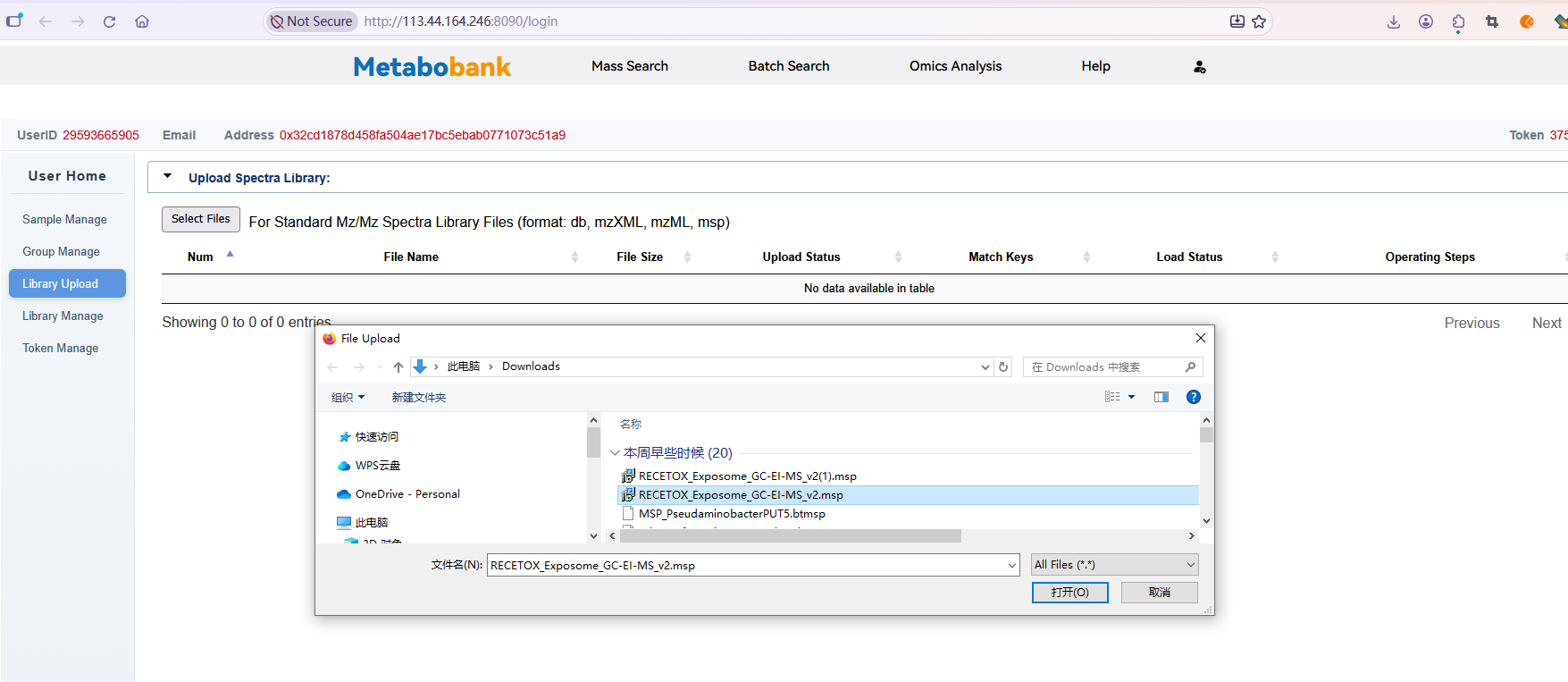
After a file is queued, the server parses its structure:
| Format | Structure verification |
|---|---|
| db | All tables in the database are read. Both SpectrumTable and CompoundTable must exist and contain more than 0 records; otherwise the file cannot be loaded. |
| msp | The header lines in "field: value" form and the peak lists are parsed, the Item Count (number of compounds and spectra in the file) is calculated, and a mappable field list is generated. |
| mzXML / mzML | The mass spec run information is parsed to read the polarity and adduct, which are used to normalise the ion mode. |
2. Duplicate check: File Exists blocks the upload
Before Upload starts, the system queries the user's upload records by file MD5. If the same file has already been uploaded and the file size on disk matches, it is treated as a duplicate:

3. Step 2: checking spectral fields (Check Keys)
Once the file has been uploaded, click Check Keys to open the field-checking dialog. The top of the dialog shows the result (pass / no pass), the file name, and the Item Count; the table lists each file field, its value type, an example value, and the corresponding database field.
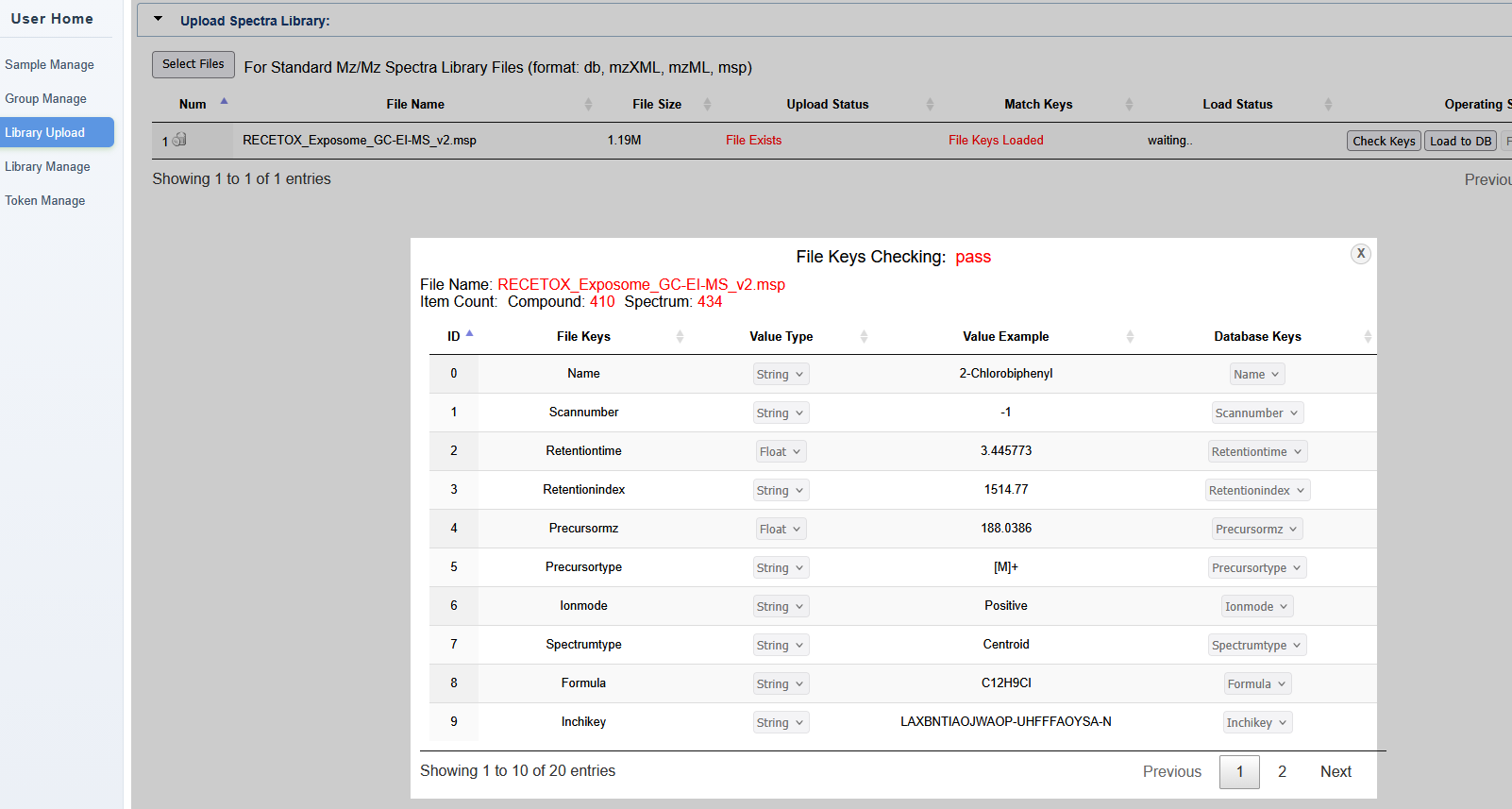
| Column | Description |
|---|---|
| Files | The original field name detected in the file. |
| Value Type | String, Integer, or Float. A change is saved to the file's field configuration immediately. |
| Value Example | An example value from the file, used to confirm that the field contains the expected data. |
| Database Keys | The database field to map to. A change is written back to the server immediately and persists after a page refresh. |
Requirements differ by format. If a required field is missing, the dialog shows no pass and Load to DB stays disabled:
| Format | Required fields | Result |
|---|---|---|
| msp | Name, Precursormz, and Formula must all be present, plus at least one of Inchikey, Smiles, Collisionenergy, or Ionmode (four fields in total). | Fewer than 4 fields: no pass. |
| db (SpectrumTable) | SpectrumId, CompoundId, PrecursorMass, blobMass, and blobIntensity must all be present. | Fewer than 5 fields: no pass. |
| db (CompoundTable) | CASId, PubChemId, Formula, Name, and CompoundId must all be present. | Fewer than 5 fields: no pass. |
| mzXML / mzML | No field-count threshold, but the polarity and adduct must be confirmed; the adduct can be checked or edited in the dialog. | Proceed once the structure parses successfully. |
4. Loading into the database
Once the check passes, Load to DB becomes available. Clicking it starts a background import thread, and the page polls the progress every 2 seconds and shows a percentage. On completion it reports Load finished! Imported: N; duplicates skipped: M. The imported spectra can then be reviewed in Library Manage.
| Status column | Typical values and meaning |
|---|---|
| Upload Status | checking…, calculate md5, uploading N%, File Exists (duplicate file; upload not allowed). |
| Match Keys | waiting.., File Keys Loaded (field list read; ready for checking). |
| Load Status | waiting., loading N%, Load finished! Imported: N; duplicates skipped: M. |
Related pages: Library Manage (review and edit imported spectra) · Points & Registration Rules (registration rewards and unlock rules) · Group Manage (sharing and permissions)