Sample Manage
The Sample Manage page lists all MS/MS sample files uploaded by the current user, showing each file's parsed peak count, match hits, and run history. It supports re-matching, viewing the peak list and match results, and deleting samples. The page header also shows the current user's UserID, Email, address, and remaining Token count.
1. Sample List
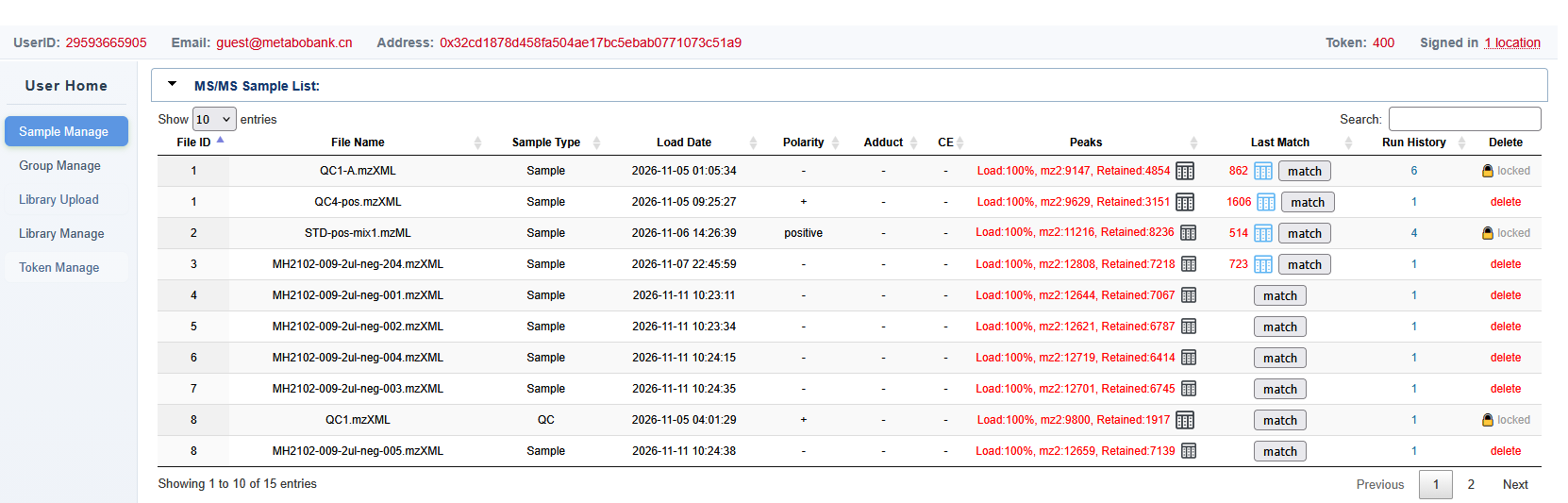
Columns of the sample list:
| Column | Description |
|---|---|
| File ID | File identifier (upload order) |
| File Name | File name (mzXML) |
| Sample Type | Sample type: Sample / QC / Blank |
| Load Date | Upload date |
| Polarity | Ionization polarity: + (positive) / - (negative) / positive |
| Adduct | Adduct form (e.g. [M+H]+, [M-H]-) |
| CE | Collision Energy |
| Peaks | Parse result in the form Load:100%, mz2:9147, Retained:4854 (load progress, total MS2 peaks, retained peaks after filtering); click the icon to view the peak list |
| Last Match | Hit count of the latest match; click the icon to view results, click match to re-run |
| Run History | Number of matching runs; click to view detailed records of each run |
| Delete | Delete the sample; public samples show 🔒 locked and cannot be deleted |
2. Run History
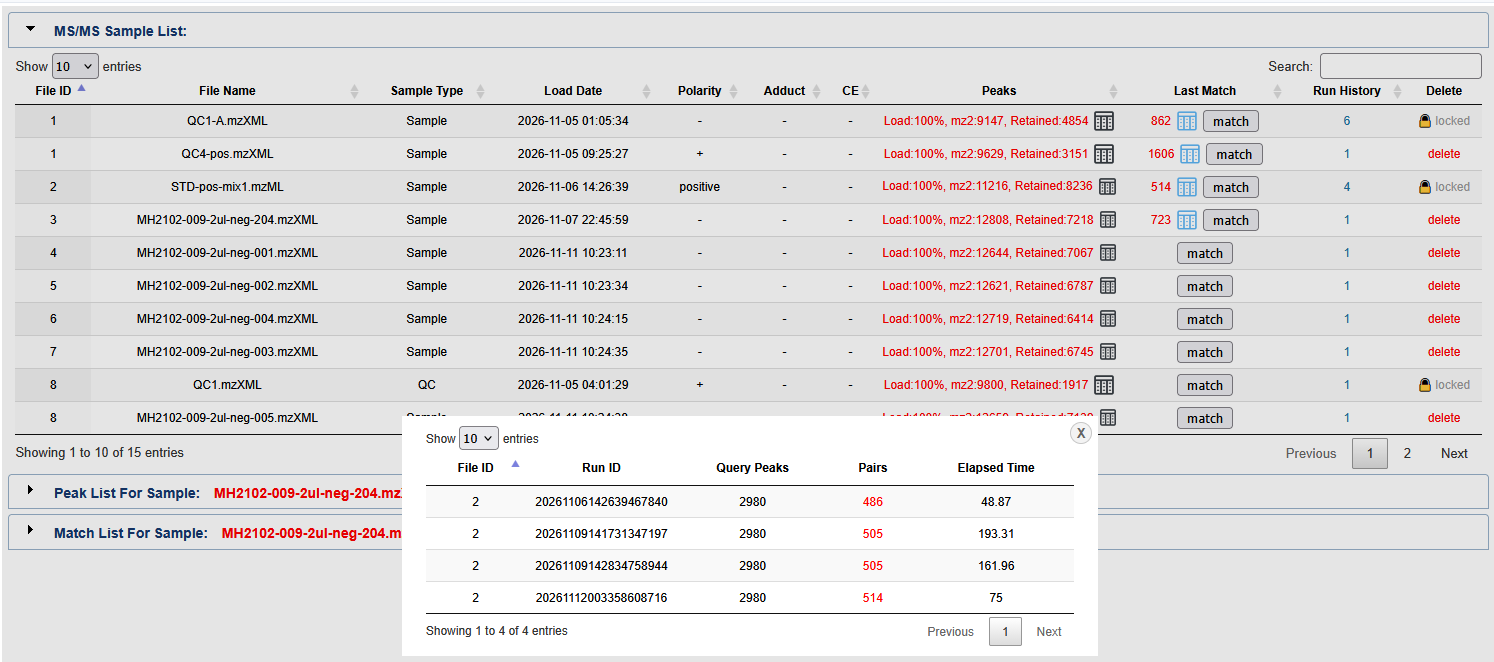
Click the number in the Run History column to open the matching run history table for that sample, listing each run's Run ID, Query Peaks, Pairs (matched peak pairs), and Elapsed Time (seconds).
3. Peak List
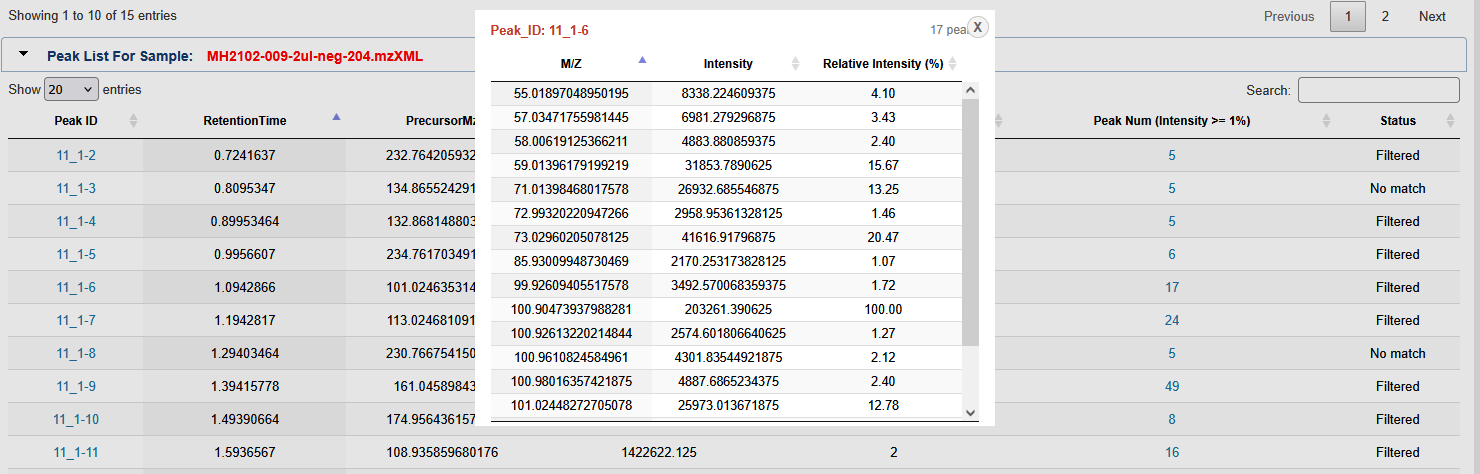
Click the icon in the Peaks column to expand Peak List For Sample below, listing all parsed peaks with Peak ID, RetentionTime, PrecursorMz, and Status (Filtered / No match). Clicking a peak opens a detail popup of its fragment ions: M/Z, Intensity, Relative Intensity (%), and Peak Num (peaks with intensity > 1%).
4. Match List
Click the icon in the Last Match column to expand Match List For Sample below, showing the compound matching results. Toggle between Compound View (merged by compound) and Peak View (best match per peak), and use Export to Excel to download.
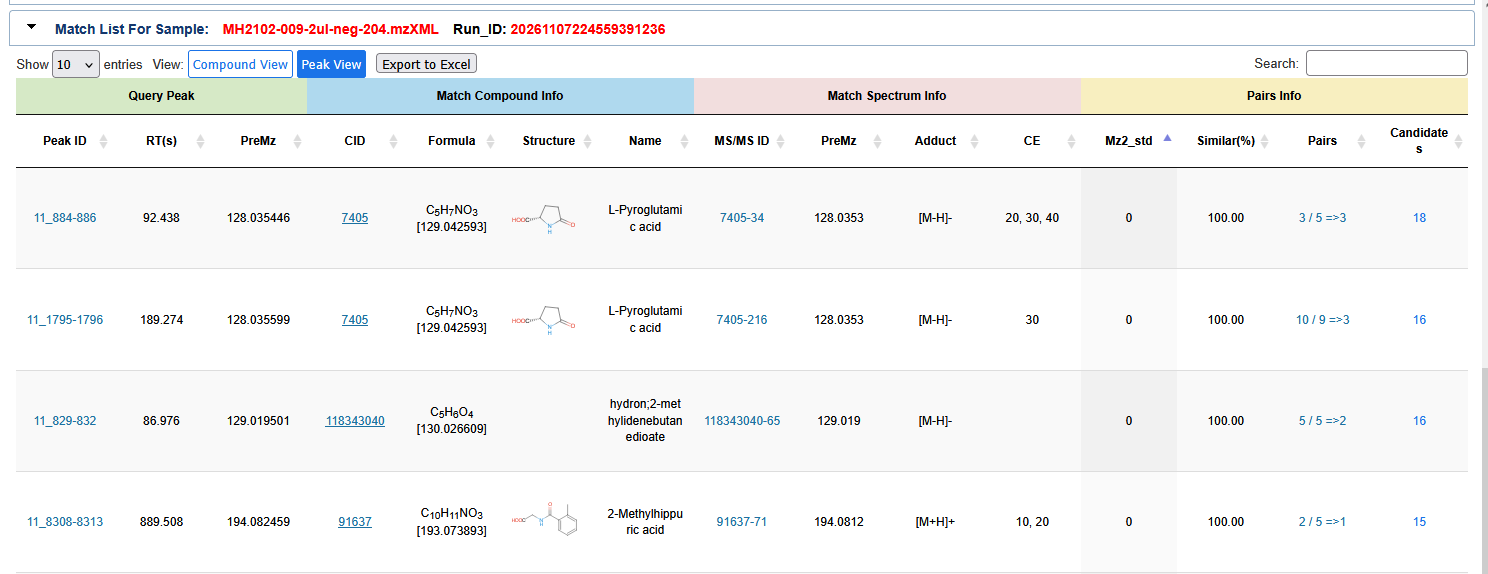
Main match result fields:
| Field | Description |
|---|---|
| Peak ID | Query peak identifier |
| RT(s) | Retention time (seconds) |
| PreMz | Precursor ion m/z |
| CID | PubChem CID |
| Formula / Structure / Name | Molecular formula, structure, compound name |
| MS/MS ID | Matched library spectrum ID |
| PreMz (spectrum) | Library spectrum precursor m/z |
| Adduct | Adduct form |
| CE | Collision energy |
| Mz2_std | Standard deviation of fragment matching tolerance |
| Similar(%) | Spectrum similarity |
| Pairs | Matched peak pairs, format "matched / total => threshold" |
| Candidates | Number of candidate compounds |
5. Re-match
See also: Batch Search (upload & match) · Group Manage · Library Manage